Alfred 6 Is Coming This Autumn
Want to be the first to know? Sign up to find out as soon as Alfred 6 is released.
Your reliable and steadfast productivity companion is getting a stunning upgrade this Autumn!
As we get closer to the release date, you can expect to see sneak peeks of the new features. We're currently in beta testing with a small group of users, so that everything is just perfect when we get to the general release.
Upgrading to Alfred 6
We're offering a generous grace period for those who purchased this year; If you purchased in 2026 or are a Mega Supporter / Legendary Supporter, you'll receive a free upgrade to Alfred 6.
New to Alfred? If you don't yet have a Powerpack license, purchasing any Powerpack license today gives you an Alfred 5 license right away, and a free upgrade to Alfred 6 when it launches.
Migrating your preferences from Alfred 5 to Alfred 6 will be seamless, so jump in and join the Alfred community.
Alfred's Dynamic Placeholders can save you time and effort in so many ways.
Haven't heard of placeholders before? They're stand-ins for text that is dynamically inserted into your snippet. This could be a date, your current or past clipboard content, a random string from a list, or even another snippet! 🤯
In the next three posts, we'll take a look at a few ways to use these clever placeholders in your snippets and workflows, beginning with simple placeholders like dates and date arithmetics.
Creating our Date Placeholder
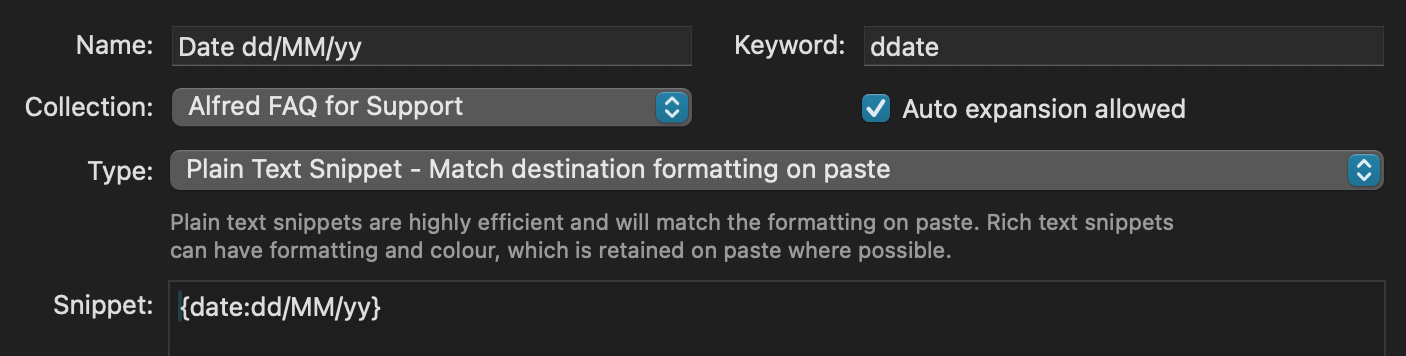
For a placeholder containing today's date:
{date:dd/MM/yy}
When pasted, this date will follow the format of 23/09/26, which is date / month / year, each one in two-digits format and in my preferred order of date before month.
If I add +1d, the snippet will calculate tomorrow's date:
{date +1d:dd/MM/yy}
As we've added a calculation of +1 day, we'll see 24/09/26 - the 24th of September, a day later than our date above.
Need the time two days and six hours ago? Sure!
{datetime -2d-6h}
The format of the date can be changed to your preference, from a full text date and time to the number of the week of the year.
To do this, you can use Alfred's full, long, medium, and short shortcuts:
{datetime:full}
The resulting snippet output will be Wednesday, 23 September 2026 at 13:14:27 British Summer Time.
Alternatively, you can use the Unicode Date Format Patterns to create any date and time format that suits your needs.
Formatting and capitalisation matters
It's worth noting that MM and mm are not the same; Always check your capitalisation, or you may add minutes instead of the month to your placeholder!
Using the Dynamic Placeholder in a Snippet
To embed your date or time dynamic placeholder in a snippet, create your usual snippet and include the formatted dynamic placeholder in curly brackets.
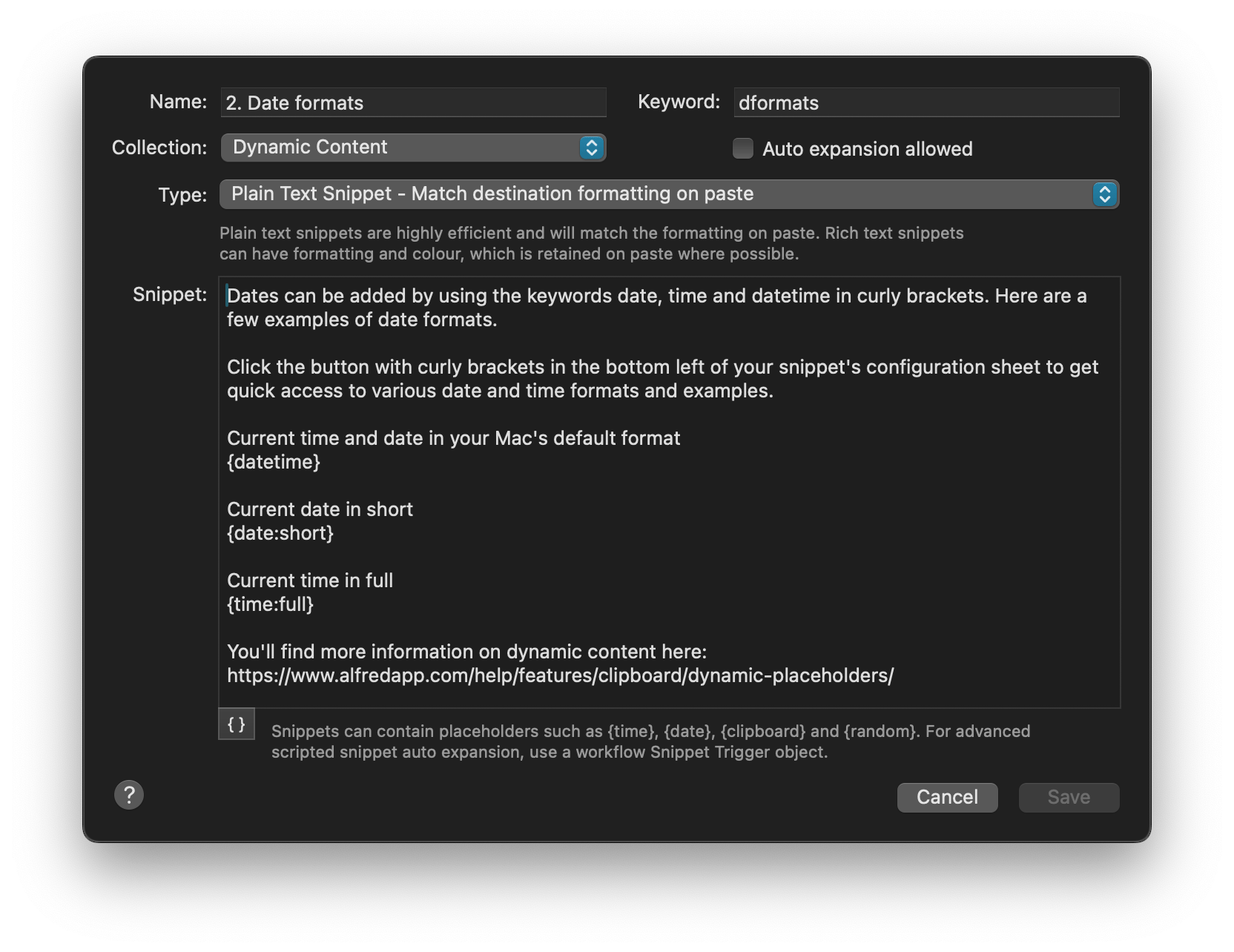
Note that you can browse a selection of dynamic placeholder examples by clicking on the button with the curly brackets in the bottom left of your snippet text field.
In the next post, we'll take a look at using the clipboard's content, random items and other snippets as dynamic placeholders.
In the meantime, I hope that creating a few convenient snippets with placeholders will save you many "What day of the week is it, again!?" moments. Alfred always has the answer for you.
While working on the upcoming refresh of the Alfred website, we created this reminder of Alfred's core values:
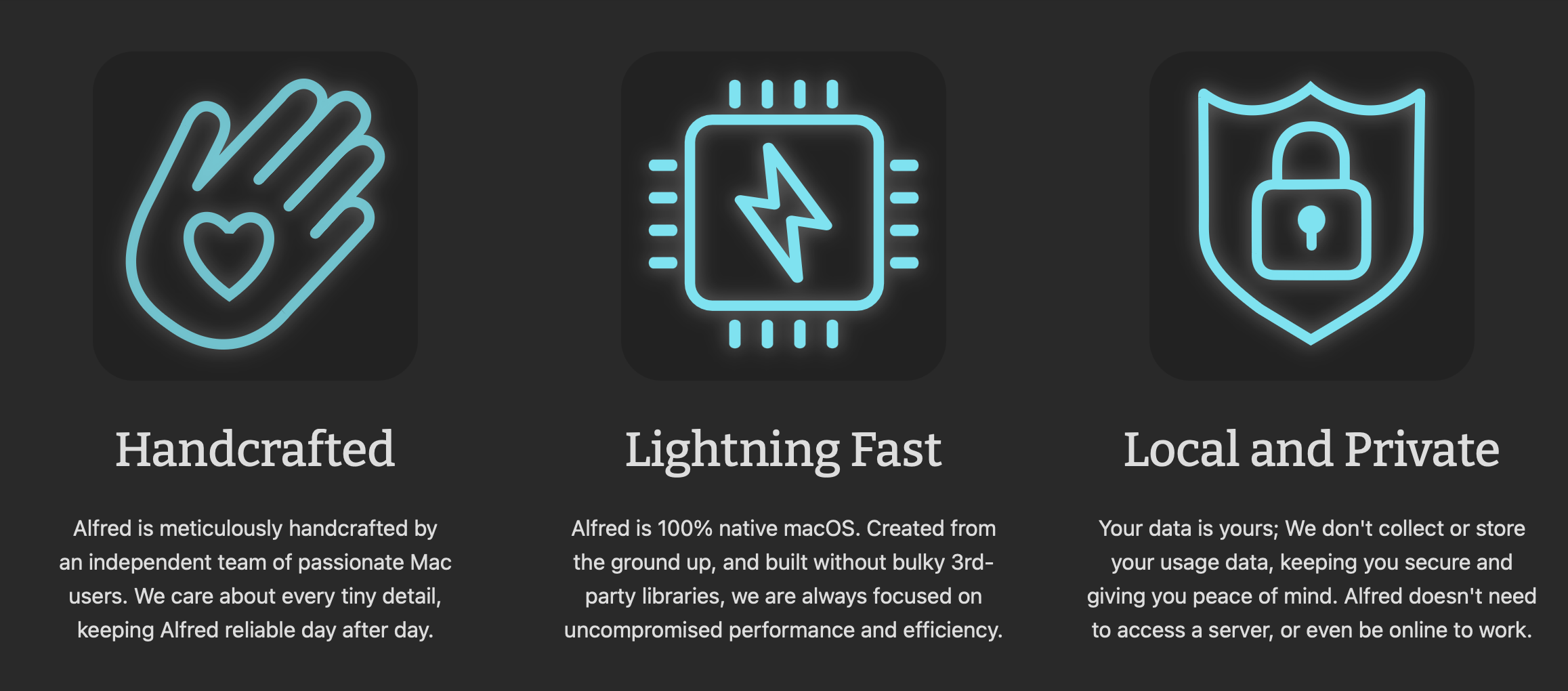
For community members who have been with us a long time, you'll know that since day one, our objective has been to keep Alfred lightweight, as fast as possible, and practically invisible when not in use.
How many apps can boast the sheer range of features in Alfred, including a full visual development environment for workflows, contained within a sub-6 MB dmg file? This isn't an installer, it's the full app. There are no additional background downloads - 6 MB, that's it!
We love making these continuous improvements, as we shared in our recent post about Alfred's onboarding experience, with a view of making your experience as smooth as possible.
Alfred is so much more than a collection of features; It's an incredible community of users, creators and friends.
We can't wait to share the new website - as well as some exciting sneak peeks - with you soon.
Even between major updates, our approach for Alfred has always been one of steady, ongoing improvement. Sometimes, it's through bold new features, but more often, it happens through incremental, subtle refinements to the user experience. A speed improvement here, an efficiency tweak there.
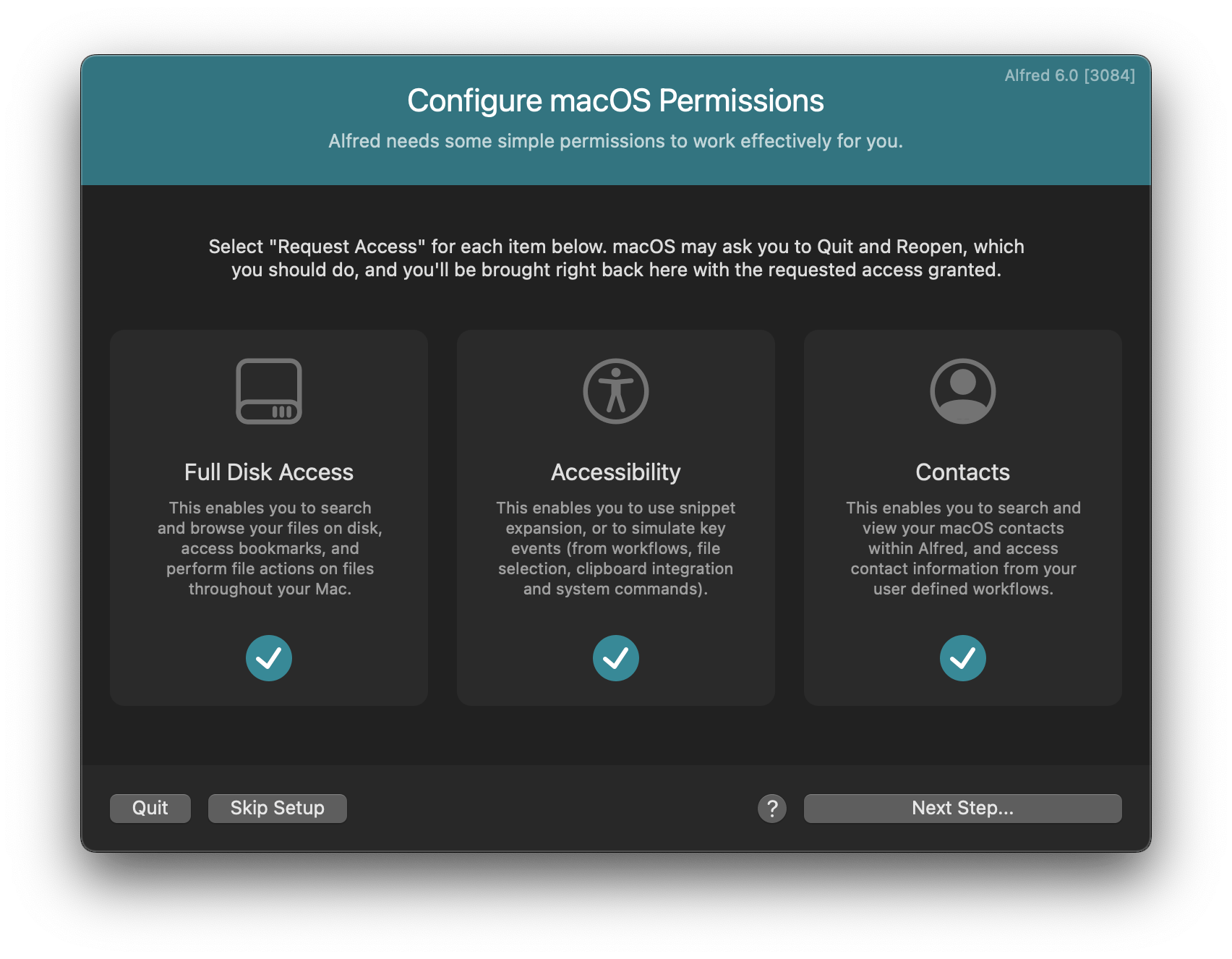
Alfred's onboarding and migration process is one of our recent areas of focus; It has always been very functional but, over the years, Apple has made the process of requesting permissions a little fussier with every macOS version. We wanted to make this experience more polished and streamlined for new and existing users.
In an upcoming update, when you install Alfred fresh or upgrade from an earlier version, you'll see this new tidy configuration screen, where you can easily pop up the relevant macOS permissions and confirm they've been granted with clear checkmarks.
As the 2026 Winter Olympics begin, Alfred community member FireFingers21 has created a workflow we can all use to keep track of the Olympics' schedule, standings and stats.
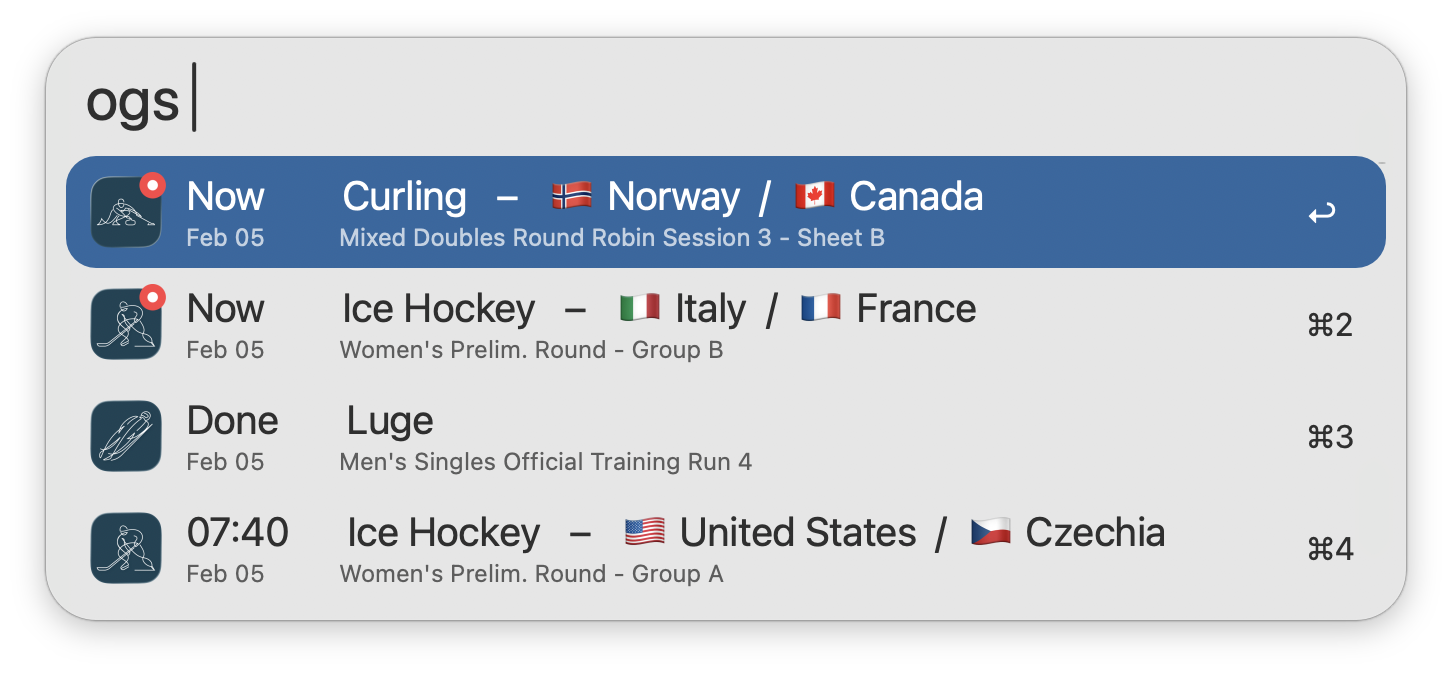
The official opening ceremony is held on Friday, 6th February, with athletes from more than 90 countries competing on snow and ice over the next two weeks in Milan and Cortina.
Download the Olympic Standings and Stats workflow from the Alfred Gallery.
Use the keyword ogs to view the schedule adjusted to your local time zone. Type to filter by Sport, Country, Event, or Date.
FireFingers21 adds his own Olympian trivia:
"The Athens 2004 Summer Olympics were the first Olympic Games to be broadcast live over the Internet, in which streaming video and highlight clips were made available through mobile phones using 3G.
Now just over 20 years later, 8K streams have been made available and viewable over 5G, while key information can be conveniently glimpsed from an Alfred window on a Mac!"
Which sports will you be watching this winter?
Why not check out some of our other sports statistics workflows, like the football Premier League Stats, basketball NBA Scores and hockey NHL Stats workflows?