Alfred 6 Expanded Sneak Peek

Take a look at the extended Sneak Peek: We've added more juicy details about what's coming in Alfred 6!
Take a look at the extended Sneak Peek: We've added more juicy details about what's coming in Alfred 6!

Take a look at the First Alfred 6 Sneak Peek!
In the last two posts on Dynamic placeholders, we covered how to insert the date and time, and how to use a variety of other useful sources of content such as your clipboard, query, or a random string.
In this third guide to Dynamic Placeholders, we're integrating placeholders into workflows.
Your snippet can be created on the fly by popping up a prompt in a workflow:
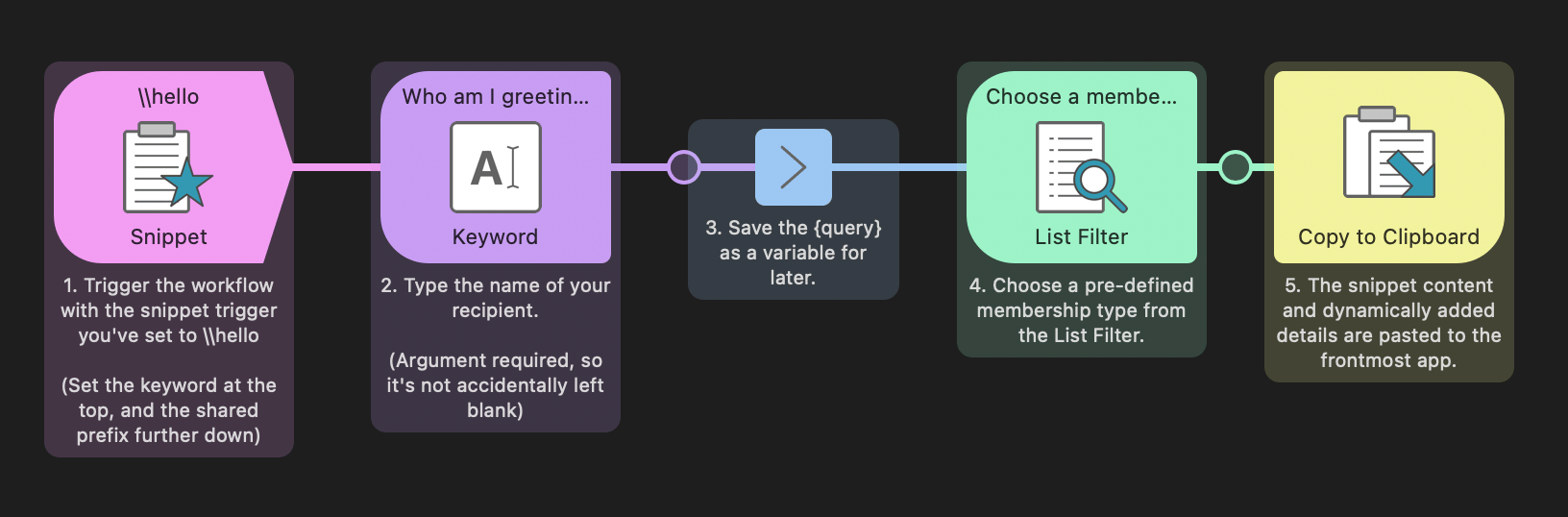
For this snippet, I'd like to add two bits of dynamic content; First, I want to type the name of a new club member, and second, choose a type of membership from a pre-defined list. Finally, I want this snippet to paste to the frontmost app.
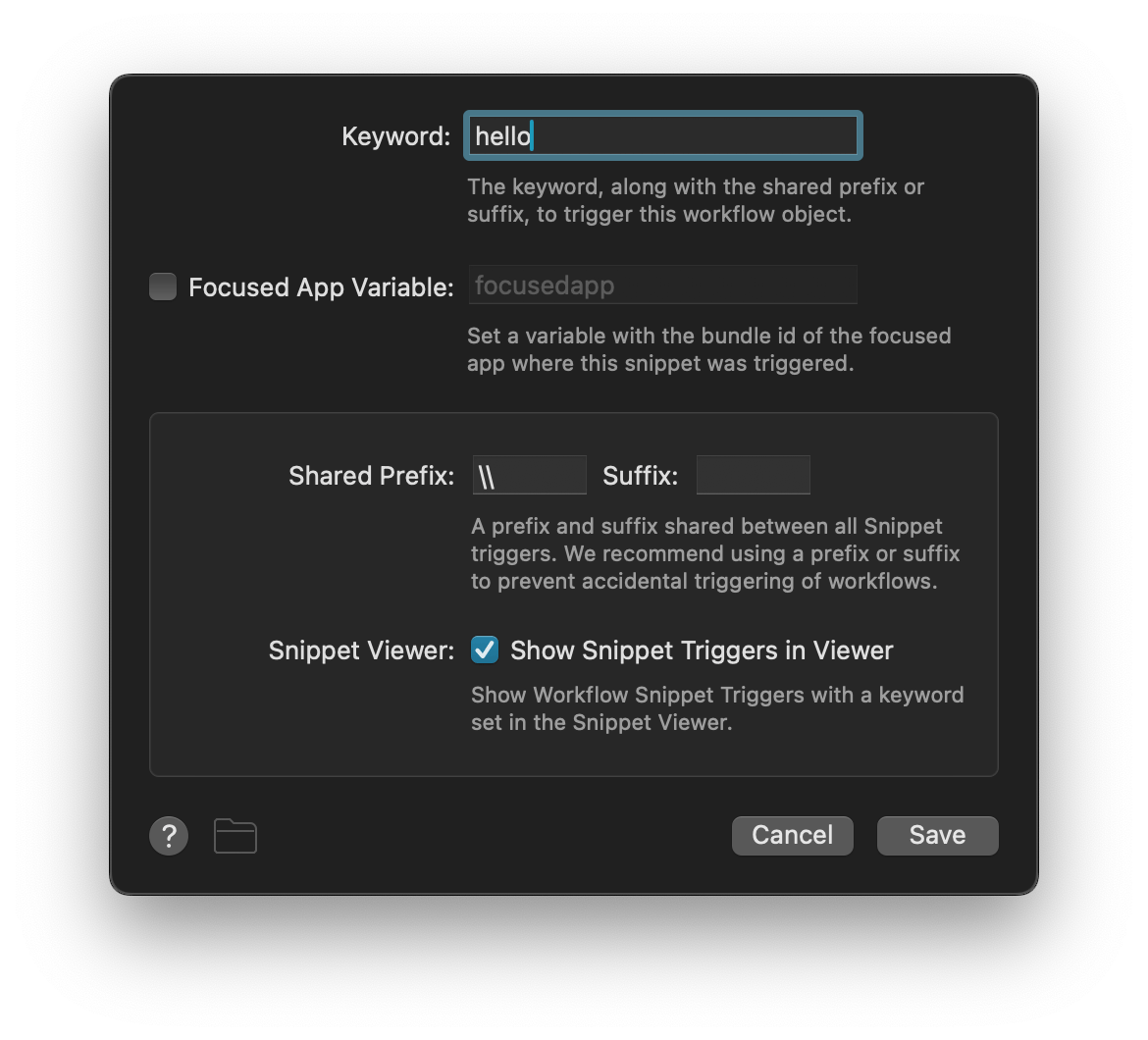
The Snippet Trigger is set to the keyword hello with the prefix \\. Typing \\hello in any email or document will trigger the snippet.
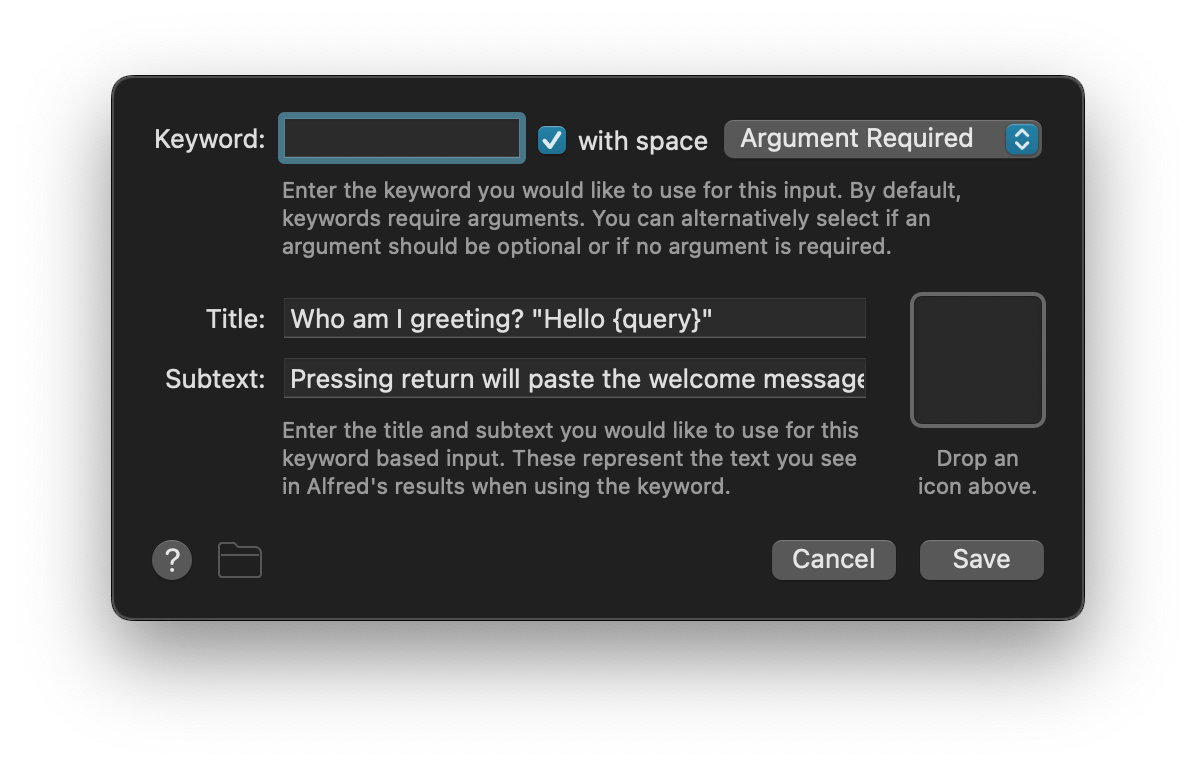
The Keyword Input's keyword field is left blank and set to "Argument required". This is when I can type the name of my new club member.
The Argument & Variables Utility saves the club member's name to a variable for later use.
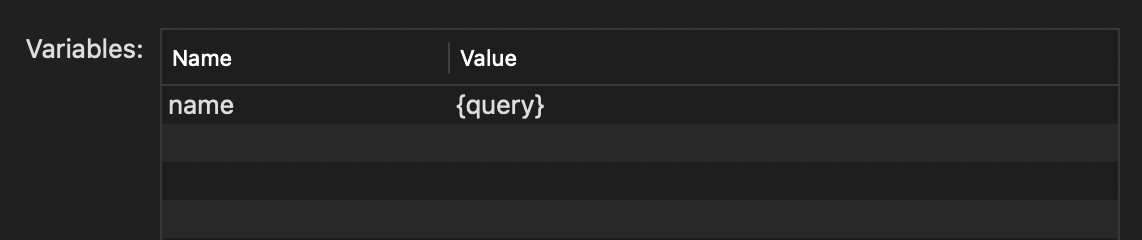
In the List Filter Input, I've pre-defined
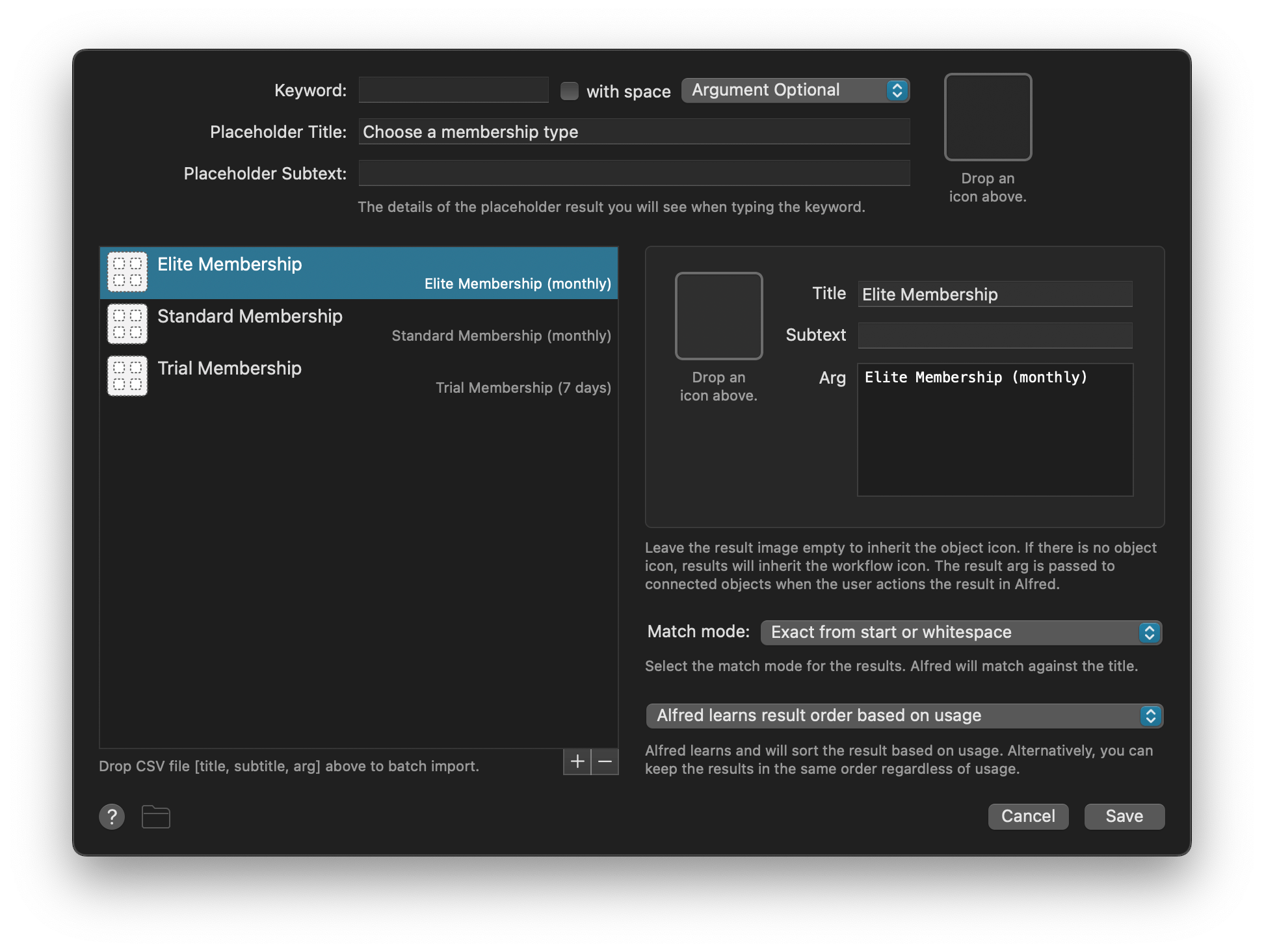
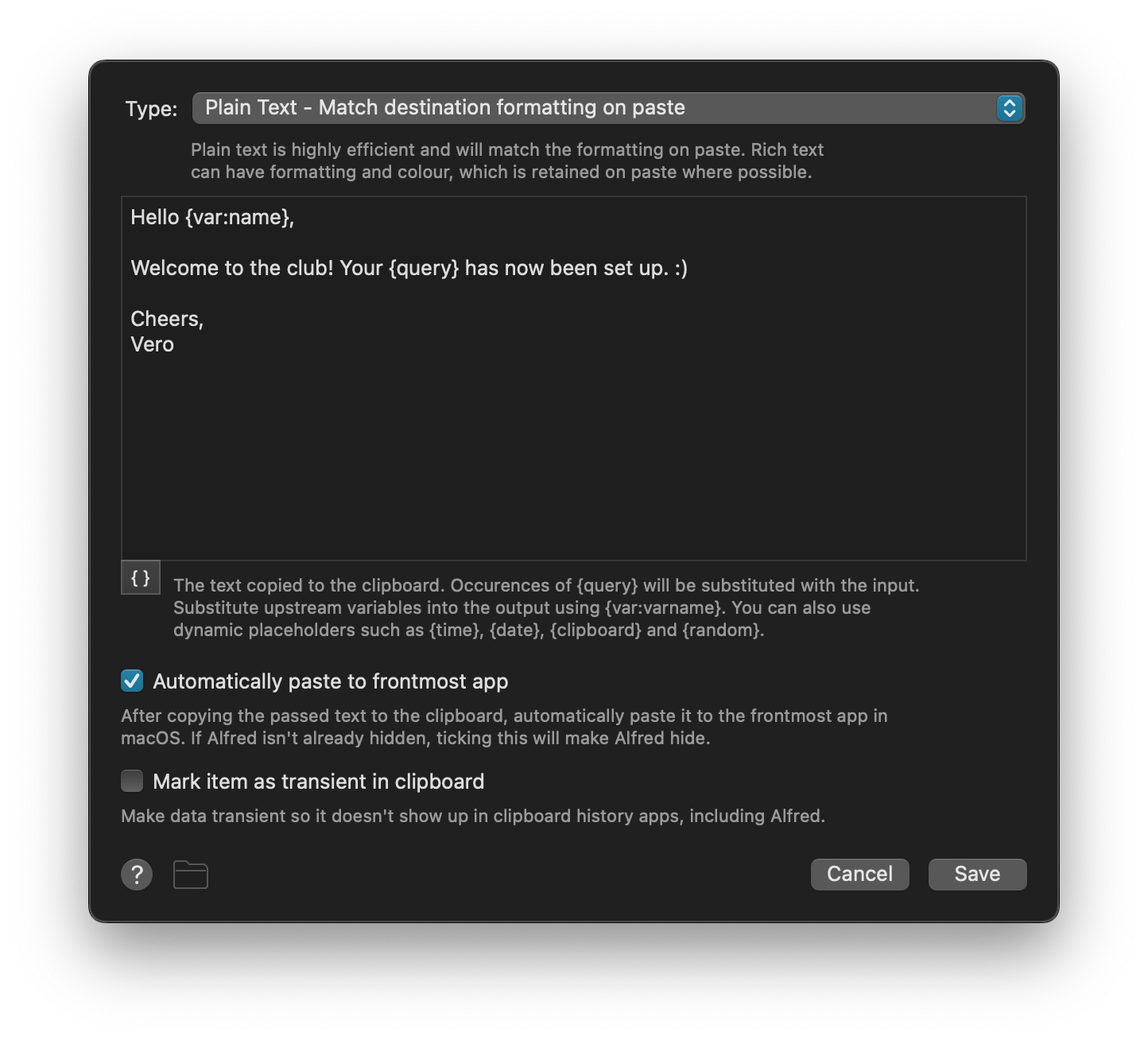
The final object is a Copy to Clipboard Output.
Now that I've entered a choice for both placeholders, pressing Return will paste the full snippet to the frontmost app, replacing the dynamic placeholders.
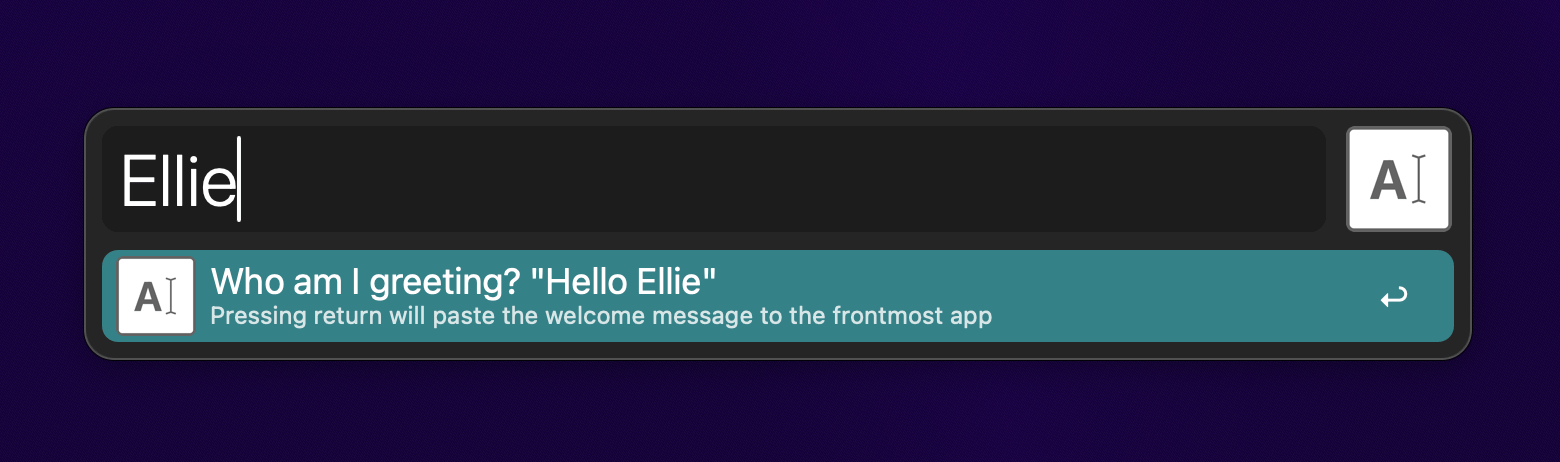
Typing \\hello in the app where I want the final snippet to appear pops up our first prompt where I can type a name:
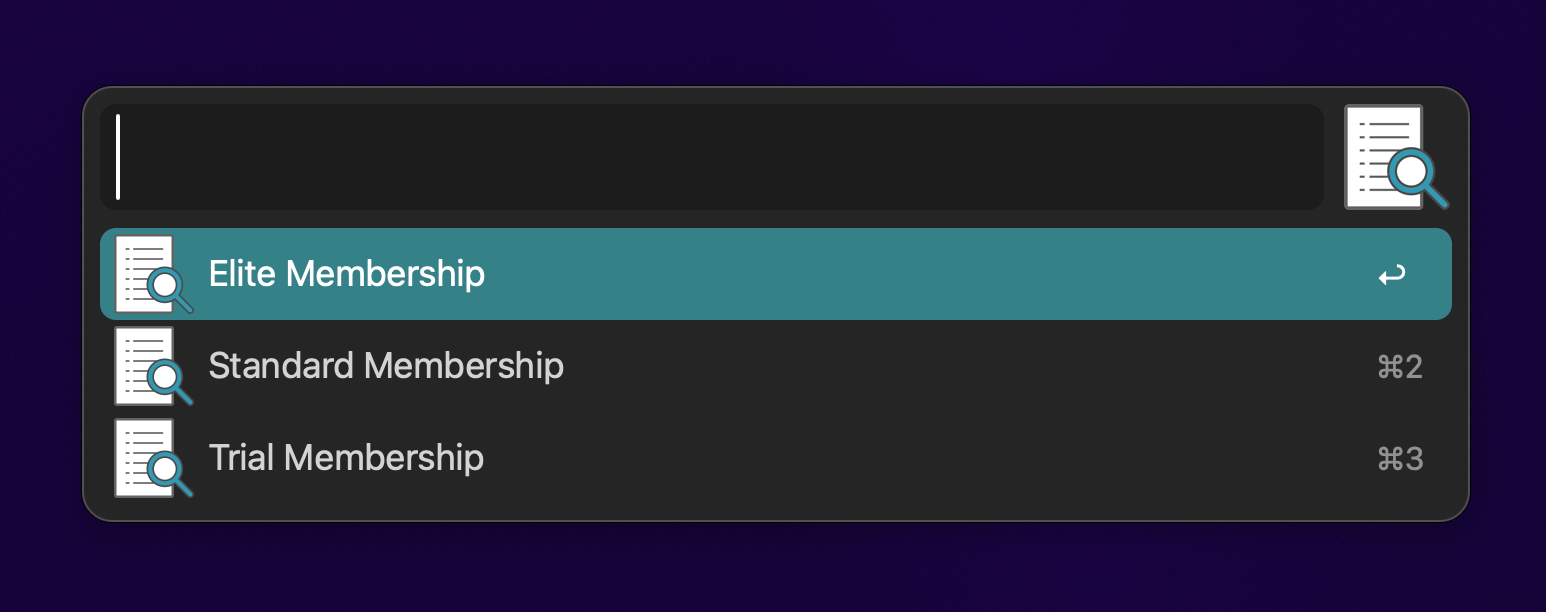
Next, we choose the Membership Type from the list:
Pressing Return pastes the output to the frontmost app:
Hello Ellie,
Welcome to the club! Your Trial Membership (7 days) has now been set up. :)
Cheers,
Vero
What snippets could you create with dynamic placeholders that will take care of repetitive tasks for you?
In an earlier post, we experimented with Dynamic Placeholders for date and time, which can be used in snippets and workflows.
In this second guide, let's take a look at other convenient Dynamic Placeholders available in Alfred.
Use the {clipboard} placeholder to insert the current clipboard content into a snippet or {clipboard:3} for an older clipboard item.
Do you already use Alfred's Snippets feature? If so, you can add snippets inside your snippets!
{snippet:snippetkeyword} will insert another snippet within your snippet.
Need to spice up your snippet by adding a bit of randomness? You can write a handful of friendly introductions, then let luck decide which one will be inserted when your snippet expands.
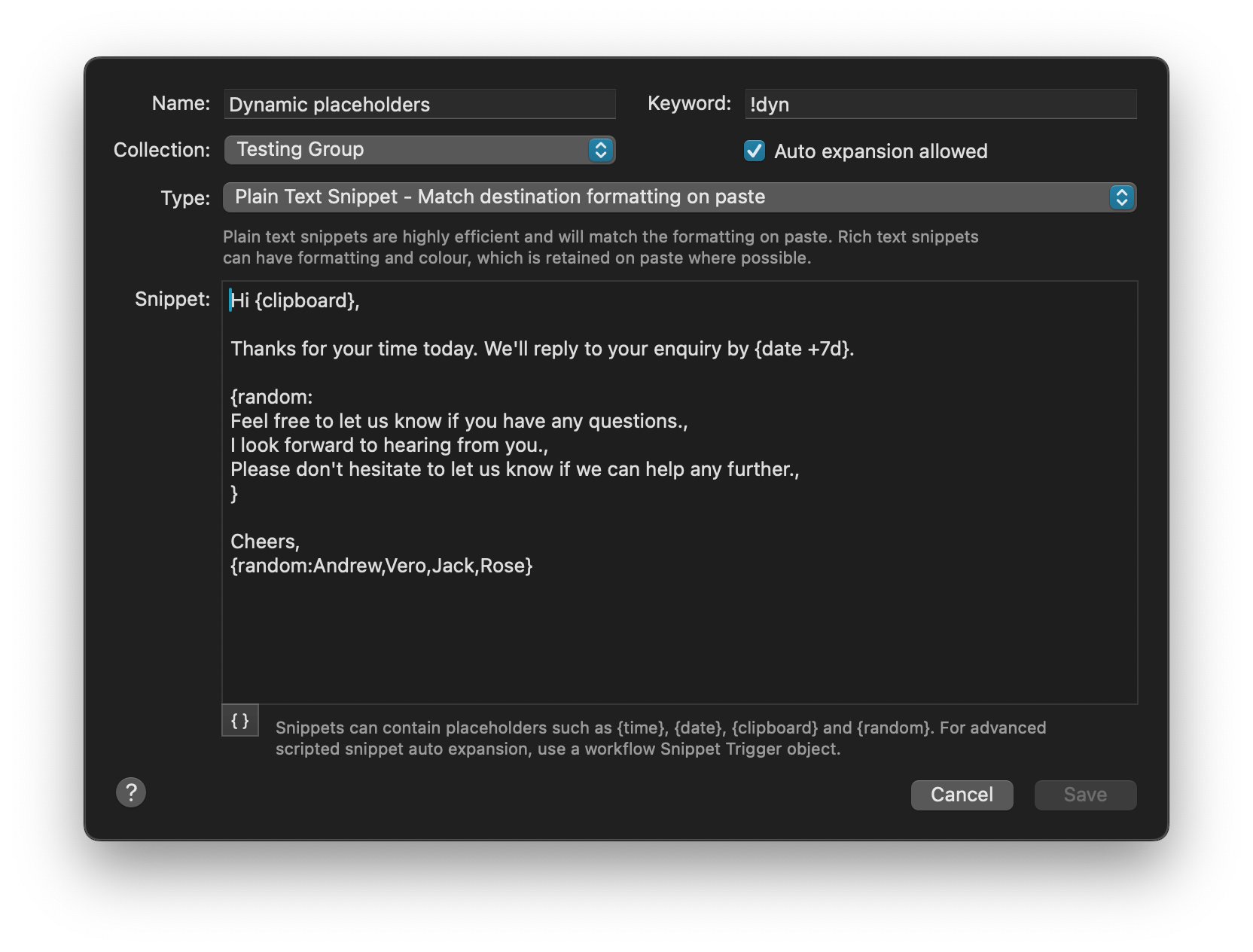
To insert a random name from a pre-defined list, use {random:Andrew, Vero, Jack, Rose}.
For a random number, you can use {random:1..100} for a number between 1-100, or {random:UUID} to create a random unique identifier string.
Adding {cursor} to your snippet will re-position your cursor from the end of the snippet to the specified position after pasting the snippet.
In the context of a workflow, you can also use the {query} placeholder to insert the argument passed by the previous object of your workflow.
Use the curly quotes button at the bottom of the Snippets text box for some built-in handy formatting examples, or take a look at the Dynamic Placeholders page for more detailed information on using every type of placeholder.
You now know how to integrate date and time placeholders in your snippets and workflows, as well as all of the variables above.
In the last post in this series, we'll look at three ways to use placeholders in workflows; To add free text on the fly, choose content from a pre-defined list and perform a non-text action.
Who knew Dynamic Placeholders were quietly such a powerhouse?

In anticipation of the release of macOS 27 Golden Gate, announced for Monday 14th September, we've released Alfred 5.8 today.
This update includes minor optimisations and tweaks to support the new macOS version, as well as preparation for a seamless transition to Alfred 6.
You can update to Alfred 5.8 from the Update tab in the preferences, or download it from alfredapp.com.
We've been using Golden Gate throughout Apple's beta rollout, and have validated Alfred 5, so you can expect a smooth experience when you upgrade macOS.
A new macOS release is a good time to start or refresh your backups, whether you use Time Machine or another backup method of your choice.
If you want to only back up your Alfred preferences, you can use our Preferences Backup workflow to make sure you never lose your carefully crafted preferences.
When installing macOS from scratch on a new Mac, remember that your Mac will need a moment to build the file index on which Alfred relies on, so allow an hour or two after installation for macOS to sort itself out.


"Alfred" is a registered trademark of Running with Crayons Ltd. ©2026 Running with Crayons Ltd. All rights reserved.